


Want to stop blaming your aim? Your UI and control defaults are often the real culprit.
Before your first session, spend five minutes fixing input, display, and control basics so the game reads you, not the other way round.
This quick setup covers device check, preset selection, camera shake and vibration off, fullscreen mode, HUD clarity, and sensible sensitivity and bindings.
Do it now and you’ll learn faster, react cleaner, and stop losing to avoidable interface problems.
Core Beginner Setup: UI and Control Foundations for Smooth First-Time Gameplay
Your first session should start with a quick setup pass that removes the frustrations most beginners hit. These steps confirm your device works, prevent input delays, and clear out visual noise that makes learning harder. Get the basics right so you can focus on the game, not the interface.
New players skip this and spend weeks adapting to defaults that pros would never touch. Camera shake kills your tracking. Vibration adds noise when you’re trying to clutch. Borderless windowed mode sneaks in input lag you won’t notice until you test fullscreen. Fixing this stuff takes five minutes and makes the game feel way more responsive.
Run through this during your first session:
- Check that your controller or keyboard shows up in the input device list and all buttons register in settings.
- Pick the recommended control preset for your input type. If the game offers “Standard” or “Tactical,” read the description and match it to your experience.
- Look at default keybindings and note where jump, crouch, primary fire, reload, and sprint live. You’ll hammer these actions in your first hours.
- Turn off camera shake in visual or gameplay settings.
- Disable controller vibration.
- Set the game to fullscreen, not borderless or windowed.
- Confirm your headset or speakers appear as the active audio output.
- Do a quick input check by moving, jumping, and aiming in the main menu or first training area. If actions feel delayed, restart and verify fullscreen is active.
This streamlined setup cleans up your input pipeline and removes early barriers. You’re not tuning advanced settings or customizing every HUD piece yet. You’re making sure the game reads your inputs cleanly and presents info without visual clutter. Save the detailed HUD, accessibility, and indicator tweaks for after you understand what you actually need during gameplay.
Optimizing the HUD and On-Screen Elements for Beginner Clarity

HUD customization is where you decide what stays visible and how clearly you can read it under pressure. Most games default to showing everything constantly, which creates clutter and buries critical info during fast moments. Keep only what you need visible, scale it for readability, and let context visibility hide elements when they’re irrelevant.
New players need a clear visual hierarchy. Health, ammo, and objective markers should be instantly readable. Secondary stuff like team rosters, ability cooldowns, or detailed minimaps can be smaller or tucked into less central zones. If you’re squinting to read your health bar or missing objective updates because text is too small, adjust scale and opacity first before hiding anything.
Make these HUD changes after your first few matches:
- Set HUD opacity to 80–90% if bright overlays distract you, or bump it to 100% if elements blend into the background during outdoor or high-contrast scenes.
- Tune minimap zoom to show enough context without constant glancing. Missing nearby enemies? Zoom in. Need better rotation awareness? Zoom out slightly.
- Scale up objective markers and mission text to 120–130% so you can read instructions without stopping.
- Increase nameplate size to 130% or higher to ID opponents and teammates faster in chaotic moments.
- Use a colorblind-friendly palette if default team colors (usually red vs blue) are hard to distinguish, or if UI elements blend into certain map backgrounds.
| HUD Element | Recommended Beginner Setting | Why It Helps |
|---|---|---|
| Health and Ammo Display | 100% opacity, 110–120% scale, positioned near crosshair or bottom center | Cuts down eye travel during combat and keeps critical status always visible |
| Minimap | Medium zoom, rotate with player orientation, 100% opacity | Balances spatial awareness and reduces constant full-screen map checks |
| Objective and Quest Markers | 120–130% scale, high contrast, on-screen and in-world spatial markers enabled | Prevents missed objectives and cuts time spent in menus confirming next steps |
Different UI categories change how info gets delivered and how much screen space they eat. Non-diegetic overlays like health bars and crosshairs give you full control and fixed positions, but they add an immersion layer. Spatial indicators anchor info to locations in the world and reduce clutter, but you can miss them if you don’t look in the right direction. Games like Assassin’s Creed: Origins hide health bars outside combat to cut visual noise and emphasize exploration. If your game offers context visibility toggles, turn them on so combat HUD appears only when you’re taking damage or engaging enemies, and exploration or dialogue HUD replaces it during calmer moments.
Control Presets and Keybinding Basics for Beginners
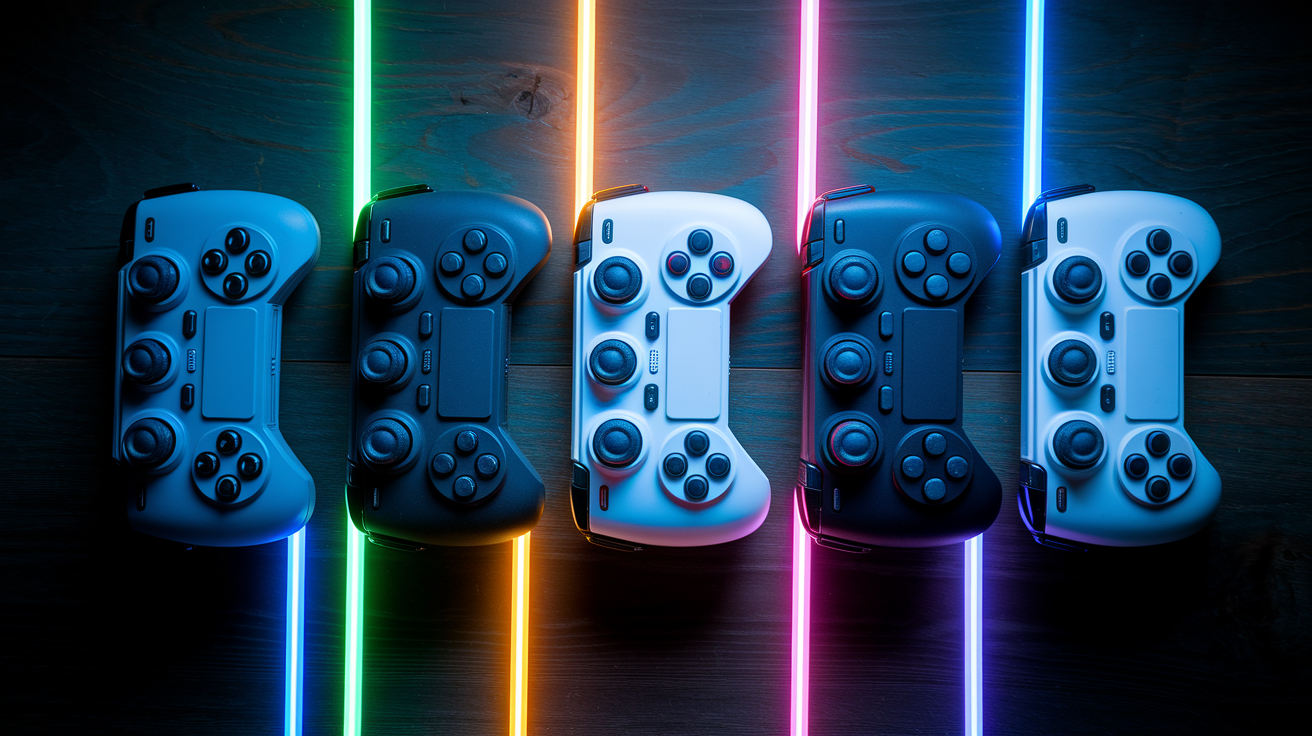
Control presets decide where your most frequent actions live and whether you can execute multiple inputs without repositioning your hands. Most games ship with two or three layouts, often labeled “Default,” “Tactical,” or “Bumper Jumper.” These names hint at the philosophy. Default keeps traditional shooter or platformer conventions. Tactical moves crouch or melee to different buttons for faster access. Bumper Jumper puts jump on a shoulder button so you can aim and jump at the same time.
Start with the preset that lets you perform the game’s core loop without lifting thumbs or repositioning fingers mid-action. If the game emphasizes movement and shooting together (fast shooters or battle royales), you want jump and aim on separate hands. If it’s slower and tactical where crouching and leaning matter more than constant jumping, Tactical presets often map those actions to easier buttons.
When reviewing default keybindings, check these first:
- Jump, crouch, and sprint. Confirm these are on comfortable keys or buttons you can press without repositioning.
- Primary fire, aim down sights, and reload. These should be on your dominant hand’s index and middle fingers (mouse buttons 1 and 2 on PC, or triggers on controller).
- Interaction and use keys. Often E on keyboard or X/A on controller. Make sure it’s easy to reach while moving.
- Ability or skill triggers. If the game has cooldown skills, check that they’re on keys you can press quickly without looking down.
- Toggle vs hold. Decide early whether you prefer toggle crouch/aim or hold crouch/aim, then set it consistently across all similar actions to avoid confusion.
Beginners ignore toggle vs hold settings and end up with inconsistent muscle memory. If you prefer toggle sprint (press once to start, press again to stop) but hold crouch (hold to stay crouched, release to stand), that’s fine. Just make sure every toggle/hold choice is intentional and matches your other games if you play multiple titles.
Keybinding conflicts are common early mistakes. If you remap reload to R but another action is already on R, the game will warn you or silently overwrite the old binding. Always check the conflict notification and decide which action you use more. For example, if you remap melee to R and the game warns “Reload is already on R,” keep reload on R and move melee to a less critical key like V or a mouse side button.
Pro players separate high-frequency actions across multiple fingers to reduce input queuing. On keyboard, they often map jump to Spacebar, crouch to Ctrl or C, and abilities to Q, E, and F so no single finger is overloaded. On controller, they use shoulder buttons (RB, LB, R1, L1) for boost, air roll, or abilities that need to be pressed while aiming with the right stick. This layout philosophy applies to any game with simultaneous input demands. Distribute your core actions so you can execute combinations without finger contortions or thumb repositioning.
If the game offers a “Recommended for New Players” or “Beginner” preset, test it for a few matches before customizing. These presets usually avoid the most common conflicts and place essential actions in accessible spots. After you understand which actions you use most and which combinations feel awkward, make small targeted rebinds rather than overhauling the entire layout at once.
Sensitivity, DPI, and Aiming Settings for Better Early-Game Accuracy
Mouse sensitivity and DPI form the foundation of aiming precision on PC. DPI (dots per inch) is a hardware setting controlled by your mouse driver software. In-game sensitivity is a multiplier applied on top of that hardware value. The relationship is simple. High DPI with low in-game sensitivity gives you finer control and more consistent tracking. Low DPI with high in-game sensitivity can introduce pixel skipping and inconsistent movement.
New players use whatever DPI their mouse shipped with (often 800, 1600, or 3200) and never touch it. Pro players typically run 400, 800, or 1600 DPI paired with low in-game sensitivity to maintain pixel-perfect precision. If your DPI is above 3200 and your in-game sensitivity is above 8, you’re probably overshooting targets and struggling with micro-adjustments. Drop DPI to 800 or 1600, then lower in-game sensitivity until a full mousepad swipe rotates your view roughly 180 to 360 degrees, depending on the game’s pace.
Make these aiming changes during your first week:
- Turn on raw input in mouse settings to bypass Windows pointer acceleration and let the game read your mouse movement directly.
- Disable mouse acceleration in both the game and your OS (Windows: turn off “Enhance pointer precision” in Mouse Properties).
- Turn off mouse smoothing or aim interpolation if the game offers these. Smoothing averages your input over several frames and makes flicks feel sluggish.
- Set your DPI to 800 or 1600 in your mouse driver, then adjust in-game sensitivity bit by bit until you can comfortably track a moving target without overshooting.
- Match your ADS (aim down sights) sensitivity to your hipfire sensitivity, or set it slightly lower if you want more precision during scoped aiming.
- Test sensitivity changes in a training mode or bot match for at least 15 minutes before deciding whether to keep the new value. Immediate reactions are usually unreliable.
Sensitivity is personal, but there are practical limits. If you can’t hit a stationary target at medium range without multiple corrective swipes, your sensitivity is too high. If you can’t turn 180 degrees to react to a flanking enemy without lifting and reswiping your mouse multiple times, your sensitivity is too low. Most beginners start too high because it feels fast and responsive, then gradually lower it as they realize precision beats speed.
Fullscreen mode matters here too. Borderless or windowed modes can introduce input lag or inconsistent frame timing that makes sensitivity feel different match to match. Run the game in fullscreen, cap your FPS to match your monitor’s refresh rate or slightly above it, and disable VSync to make sure every sensitivity adjustment translates consistently across sessions.
If you’re on controller, sensitivity works differently but the principle is the same. Start at default or slightly below, then increase bit by bit until you can track smoothly without losing the target during sustained aiming. Controller sensitivity is less about DPI and more about how fast the camera rotates when you push the stick to its edge. Focus on consistency and comfortable reaction speed rather than copying exact pro values.
Advanced Aiming Tools: Aim Assist, Deadzones, and Stick Response Curves
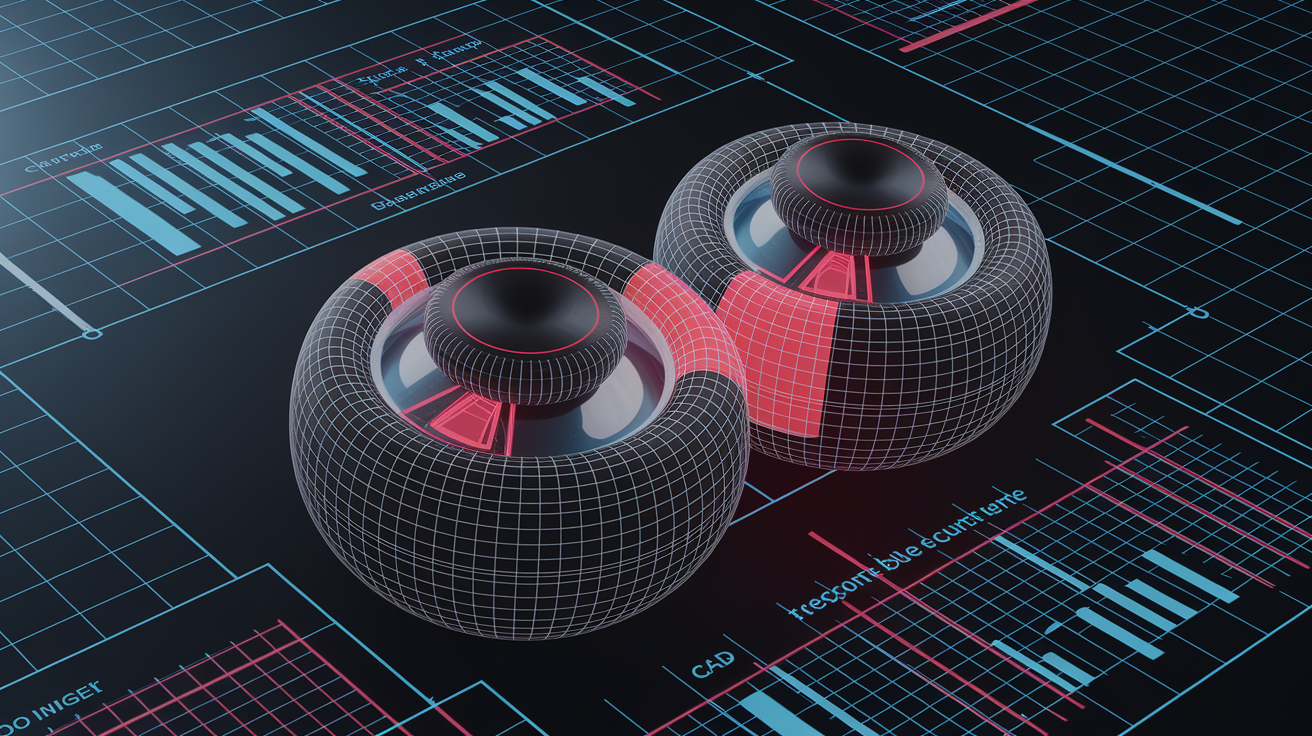
Controller players get extra tuning options that don’t exist on mouse and keyboard. Aim assist, deadzones, and stick response curves shape how your inputs translate into on-screen movement. Getting these right makes the difference between smooth tracking and constant overcorrection.
Aim assist (sometimes called aim slowdown or aim friction) reduces your crosshair speed when it passes over or near an enemy hitbox. Most console and controller-on-PC games turn this on by default to compensate for the lower precision of analog sticks. Leave aim assist on unless you’re confident in your raw tracking. Disabling it too early usually means more missed shots and frustration, not faster improvement.
Deadzones define how far you push the stick before the game registers input. High deadzones (0.15 or above) prevent accidental drift from worn-out sticks but make small adjustments sluggish. Low deadzones (0.05 to 0.08) give you finer control but can cause jitter if your sticks are slightly off-center. Pro controller setups run deadzones as low as 0.05 because newer controllers have tight centering and low mechanical drift.
Test your controller’s deadzone by slowly pushing the stick outward in settings while watching the input indicator. If the indicator moves before you feel resistance, your deadzone is very low. If you have to push noticeably before anything happens, your deadzone is high. Set your deadzone just above the point where the stick starts drifting on its own. This gives you max precision without introducing unwanted movement.
Stick response curves control how input scales as you push the stick from center to edge. Linear curves apply a 1:1 relationship. 50% stick deflection gives 50% camera speed. Exponential curves apply slower movement near the center and faster movement near the edges, giving you precision for small adjustments and speed for large flicks. Most games default to a slight exponential curve because it feels natural for aiming.
Try these advanced tuning steps after you’re comfortable with basic sensitivity:
- Set your controller deadzone to the lowest value that doesn’t cause stick drift (usually 0.05 to 0.08 on newer controllers, 0.10 to 0.12 on older or heavily used controllers).
- Leave stick response curves at default (usually a slight exponential curve) unless you have prior experience with linear aiming from other games.
- Set dodge or action deadzones higher than movement deadzones if the game separates them. This prevents accidental flips, slides, or ability triggers when you’re making small adjustments.
- Disable controller vibration to remove tactile feedback that can throw off your aim during sustained fights.
- Test trigger sensitivity settings if the game offers analog trigger customization. Some players prefer hair-trigger modes that register input earlier in the trigger press for faster reaction times.
Deadzones and curves are connected. If you lower your deadzone, you may need to adjust your curve to prevent twitchy overcorrection near the center. If you switch to a more aggressive curve, you may need to lower your sensitivity to maintain control at the edges. Change one thing at a time and test for several matches before stacking more adjustments.
Visual and Display Settings That Improve Readability and Reduce Input Lag

Graphics settings directly impact how fast the game responds to your inputs and how clearly you can see enemies, objectives, and UI elements. High-end visual effects look great in trailers but often add input lag, tank frame rates, and introduce visual noise that makes tracking harder. Prioritize performance and clarity over visual fidelity until you understand the game well enough to decide which effects are worth the cost.
Display mode is the single biggest setting for input delay. Fullscreen mode gives the game exclusive control of your monitor and bypasses Windows desktop composition, resulting in the lowest possible input lag. Borderless windowed mode looks cleaner when alt-tabbing but introduces 1–3 frames of additional delay. Windowed mode is the worst option for competitive play and should only be used for content creation or multi-monitor workflows where you need constant access to other windows.
Resolution and aspect ratio should match your monitor’s native values unless you’re on older hardware that can’t maintain stable frame rates at full resolution. Running at a lower resolution (like 1080p on a 1440p monitor) will make the image blurry and reduce clarity, but it will boost frame rate. Run native resolution and lower graphical quality settings instead of dropping resolution.
Make these visual and display changes:
- Set display mode to fullscreen.
- Select your monitor’s native resolution (usually the top option in the resolution dropdown).
- Disable VSync to remove the frame cap and input delay it adds. VSync forces the game to wait for the monitor’s refresh cycle before displaying a new frame, which can add 1–2 frames of lag.
- Cap your FPS to match your monitor’s refresh rate or slightly above it (if your monitor is 60Hz, cap at 60; if it’s 144Hz, cap at 144 or unlimited if your hardware can maintain stable frame times).
- Set the graphics preset to “High Performance” or “Competitive” if available, or manually lower settings like shadows, ambient occlusion, motion blur, and depth of field.
- Disable anti-aliasing or set it to the lowest option (FXAA or TAA Low) to reduce the performance cost and improve clarity. Anti-aliasing smooths jagged edges but can make distant targets blurrier.
Screen tearing happens when your GPU outputs frames faster than your monitor can display them, causing a visible horizontal split in the image. If you disabled VSync and notice tearing, you’ve got three options: turn on VSync and accept the input lag, cap your FPS to match your refresh rate, or enable your monitor’s adaptive sync (G-Sync or FreeSync) if it supports it. Adaptive sync is the best solution because it kills tearing without adding the input delay of traditional VSync.
Brightness and contrast matter for readability. If your game has a brightness calibration screen during first launch, follow the instructions and adjust until the darkest test image is barely visible. Too bright makes everything washed out and reduces contrast. Too dark makes shadowed areas unreadable and hides important details. Aim for a balanced setting where you can see detail in both bright outdoor areas and dark indoor spaces without squinting.
Audio, UI Sounds, and Positional Cues for New Players
Audio cues often communicate critical info faster than visual UI. Footsteps, ability triggers, reload sounds, and environmental effects all give you context that helps you react before threats appear on screen. New players ignore audio settings and miss chances to improve awareness and reduce reliance on constant visual scanning.
Most games separate audio into several categories: Master, Music, SFX (sound effects), Dialogue, Ambient, and Voice Chat. Prioritize gameplay-critical sounds (SFX and Dialogue) while reducing or muting distractions (Music and Ambient). Pro players typically run Music at 0% because menu and lobby tracks add no gameplay value and can mask important in-game sounds during transitions.
Set these audio levels during your first session:
- Master Volume: 80–90% to maintain overall clarity without clipping or distortion.
- SFX / Gameplay Audio: 100% to preserve footsteps, ability sounds, gunfire, and environmental cues like breaking glass or opening doors.
- Music: 0% to remove menu and background tracks that provide no tactical info.
- Ambient / Crowd: 0–20%. Some players enjoy atmospheric sounds for immersion, but they can mask enemy movement in competitive modes.
- Voice Chat: 100% if you’re playing with a team; mute or lower it significantly if you’re in solo queue and don’t want to hear random teammates.
- Dialogue / Character Voices: 80–100% if the game uses voice lines to communicate objective updates or ability status.
Headset choice and audio positioning settings also matter. Stereo headsets provide basic left-right separation. Surround-sound headsets (real or virtual 7.1) attempt to simulate directional audio from multiple angles. Most competitive players prefer stereo because it offers more accurate left-right positioning without the processing delay and inconsistency of virtual surround. If your game offers a “3D Audio” or “Spatial Sound” option, test it in a training mode by listening for footsteps from different directions. If you can reliably ID front vs back and left vs right, keep it on. If sounds feel muddled or inconsistent, turn it off and go back to stereo.
Turn on subtitles and text chat if the game supports them, especially if you’re learning callouts or playing with teammates who don’t use voice chat. Subtitles help you catch dialogue-based objective updates you might miss during chaotic moments. Text chat lets you communicate without a microphone.
Accessibility and Visual-Aid Settings That Help Beginners Learn Faster
Accessibility features are often buried in submenus and ignored by new players who think they’re only for users with disabilities. In reality, lots of accessibility options improve clarity, reduce eye strain, and speed up learning for all players. Scalable UI, high-contrast modes, and remappable inputs let you adapt the game to your preferences rather than forcing you to adapt to rigid defaults.
UI font size and element scaling directly impact readability. If you’re playing on a large monitor or sitting far from the screen, default text size may be too small to read comfortably during fast moments. Most games offer a UI scale slider (80% to 150%) that resizes all on-screen text and elements proportionally. Bump scale to 120–130% if you find yourself leaning forward to read objective text or ability cooldowns.
Colorblind modes adjust the game’s color palette to improve contrast for players with red-green, blue-yellow, or full colorblindness. Even if you don’t have a color vision issue, these modes can make certain UI elements and team indicators more distinct. If you struggle to tell enemy nameplates from teammate nameplates, or if objective markers blend into certain map backgrounds, cycle through the available colorblind palettes and pick the one that offers the clearest contrast.
Turn on these accessibility features to improve your learning curve:
- Bump UI scale to 120–130% if default text is hard to read from your typical viewing distance.
- Try a colorblind-friendly palette (Deuteranopia, Protanopia, or Tritanopia) and compare contrast against the default palette. Use whichever makes important elements stand out most clearly.
- Enable high-contrast UI mode if the game offers it. This option usually replaces subtle gradients and transparency with solid colors and bold outlines.
- Remap inputs that feel uncomfortable or require awkward finger positions, even if they’re not traditionally considered “accessible” remaps.
- Turn on subtitles and enable larger subtitle text if you want to catch dialogue or objective updates without relying solely on audio.
- Enable aim assist or sticky crosshair options if you’re on controller and struggling with tracking. These features exist to level the playing field.
Some games offer extra visual aids like enemy outlines, objective glow effects, or exaggerated hit markers. These features make important elements more visible without requiring you to squint or memorize subtle visual cues. If the game includes a “Beginner Assistance” or “Visual Clarity” toggle, turn it on during your first 10–20 hours and disable it later if you feel it’s making the screen too busy.
Accessibility settings aren’t a shortcut or a sign of inexperience. They’re tools that remove unnecessary friction and let you focus on learning the game’s systems and strategies. If an option makes the game clearer or more comfortable, use it.
Testing Controls in Training Mode, Bots, and Custom Matches

Settings adjustments don’t mean much until you test them under realistic conditions. Training modes, bot matches, and custom lobbies let you validate control changes, sensitivity tweaks, and HUD adjustments without the pressure of ranked play or the chaos of full multiplayer matches.
Start with the game’s tutorial or training mode if it has one. These environments are controlled, repeatable, and focused on core mechanics. Use training mode to test your new sensitivity by tracking moving targets, practice your keybindings by executing ability combos, and verify your HUD is readable during simulated combat. If tracking feels too slow or too fast, adjust sensitivity by small steps (0.5 to 1.0 on a typical scale) and retest right away.
Bot matches are the next step. Bots give you realistic movement patterns and combat scenarios without the unpredictability of human opponents. Use bot matches to test whether your control preset lets you execute common actions without repositioning your hands, whether your HUD provides enough info during multi-target fights, and whether your audio settings let you hear directional cues clearly.
Custom matches or private lobbies let you isolate specific scenarios. If you want to test whether you can track a strafing opponent while jumping and aiming, set up a custom match with friendly bots and practice that exact sequence. If you want to verify your minimap zoom level gives enough awareness during objective rotations, load a map and run through typical rotation paths while watching the minimap.
Follow this testing workflow after every major settings change:
- Spend 10–15 minutes in training mode testing aim, movement, and ability execution with the new settings.
- Play 2–3 bot matches to validate the changes under realistic but low-pressure conditions.
- Queue one or two casual or unranked matches to test the settings against human opponents before committing to ranked play.
- If something feels worse after testing, undo the change and try a smaller adjustment. Don’t stack multiple changes and assume the first one was the problem.
- Keep a mental or written log of what you changed and why, so you can track which adjustments actually improved your performance over several sessions.
Pro players change only one or two things per practice session and test each change for multiple matches before deciding whether to keep it. If you adjust sensitivity, keybindings, HUD opacity, and audio levels all at once, you won’t know which change caused the improvement or the decline. Isolate your adjustments and give each one time to feel natural before layering on the next tweak.
Troubleshooting and Resetting Beginner Settings Safely

Settings changes sometimes introduce unexpected problems. A new keybinding conflicts with an ability you didn’t realize existed. A sensitivity adjustment feels wrong after a few matches. A HUD customization hides an element you actually needed. Knowing how to troubleshoot and reset settings safely prevents you from getting stuck with broken configurations.
Most games offer a “Restore to Default” button in each settings category (Controls, Video, Audio, Interface). Use category-specific resets rather than a global reset whenever possible. If your keybindings are broken but your video settings are fine, reset only the Controls category to avoid losing your display and graphics tweaks.
Before resetting, check whether the game saves configuration profiles or snapshots. Some titles let you save your current settings as a named profile (e.g., “My Settings Backup 1”) before making changes. If your game supports this, create a backup profile after your initial setup pass, then create a new profile for each major adjustment. If a change breaks something, load the previous profile instead of resetting to factory defaults.
Use these troubleshooting steps when settings feel wrong:
- Figure out which category the problem belongs to (input lag is usually Display or Video; unresponsive controls are usually Controls or Input; missing UI elements are usually Interface or HUD).
- Check for recent changes in that category and undo the most recent adjustment first.
- If the problem sticks around, reset that category to default and reapply your essential changes one at a time, testing after each change.
- Restart the game after major resets or profile loads to make sure the new settings take effect. Some games cache settings in memory and don’t reload them until restart.
- If input devices stop responding, confirm they’re still connected and recognized in the device manager or game settings, then restart the game or reconnect the device.
Controller drift and keybinding conflicts are the most common troubleshooting scenarios. If your camera starts drifting slowly in one direction, increase your deadzone bit by bit until the drift stops. If a keybinding isn’t working, check whether another action is mapped to the same key and causing a silent conflict.
Save and load functions are your safety net. Many games auto-save settings changes right away, but some require you to press “Apply” or “Confirm” before changes stick. Always check for a save prompt before closing the settings menu, and restart the game once after finalizing your setup to confirm everything loads correctly on launch.
Beginner-Friendly Control Profiles and Community Presets
Control profiles and community presets let you adopt tested configs without manually recreating them. Many games include built-in profile systems that store your keybindings, sensitivity, and HUD layout as named presets you can switch between instantly. If you play multiple roles or game modes, you can maintain separate profiles optimized for each context. One for fast movement-focused gameplay, another for precision aiming, and a third for vehicle or support roles.
Creating your first custom profile is easy. After you finish your initial setup and test it for a few sessions, open the settings menu and look for “Save Profile,” “Export Configuration,” or “Create Preset.” Name it something clear like “Beginner Main 2025” and save it. Now you’ve got a snapshot you can reload if future changes break something or if you want to compare a new setup against your baseline.
Some games support cloud profile sync, which saves your settings to your account and loads them automatically when you log in on a different device. Turn this on if you play on multiple PCs or consoles. It prevents you from having to recreate your setup every time you switch systems.
Community presets are shared configs created by experienced players or content creators. These presets are available through in-game browsers, official forums, or third-party sites. Importing a community preset is usually as simple as downloading a file and selecting “Import” in the settings menu. But always review the imported settings before using them in a real match. Community presets are often tuned for specific playstyles or skill levels and may not suit your preferences.
Use these steps to create and manage profiles well:
- After finalizing your beginner setup, save it as “Baseline” or “Default Custom” so you always have a stable reference point.
- If you want to test major changes (like switching from toggle to hold crouch, or trying a pro player’s sensitivity), create a new profile named “Experimental” and apply the changes there. This keeps your baseline intact.
- Test experimental profiles for at least 5–10 matches before deciding to adopt them permanently.
- If you import a community preset, load it into a new profile slot and compare it side by side with your baseline before overwriting your main config.
- Turn on cloud sync if available and verify your profile uploaded correctly by logging in on a secondary device or reinstalling the game.
Pro players often maintain multiple profiles for different scenarios. A sniper-focused profile might use lower sensitivity and higher zoom ADS multipliers. A close-range profile uses higher sensitivity and faster transition speeds. You don’t need this level of fine-tuning as a beginner, but the principle is useful. If you notice your settings work well in some situations and poorly in others, consider creating a secondary profile tailored to the weaker scenario and switching between them as needed.
Final Words
Jump in with the quick checklist and make your first session smoother. Verify input detection, pick a recommended preset, disable camera shake and vibration, use fullscreen, and run a short input check.
We covered HUD clarity, control presets, sensitivity, aiming tools, display and audio tips, accessibility, training tests, and safe resets. Each step cuts down early confusion and keeps you focused on learning.
Follow the [game] essential UI and control settings for beginners checklist and you’ll start playing with less frustration and more confidence.
FAQ
Q: What are the 4 golden rules of UI design?
A: The 4 golden rules of UI design are consistency, clarity, feedback, and efficiency—use predictable patterns, prioritise readable information, show immediate response to actions, and minimise steps to complete tasks.
Q: What is the 80 20 rule in game design?
A: The 80/20 rule in game design means roughly 20% of mechanics produce 80% of player value — prioritise those core systems, polish them, and cut or defer low-impact features.
Q: What are the 4 types of UI in games?
A: The 4 types of UI in games are diegetic, non-diegetic, spatial, and meta—diegetic exists in the game world, non-diegetic is HUD/overlays, spatial ties to environment, and meta covers menus and systems.
Q: What are the 3 C’s of game design?
A: The 3 C’s of game design are character, camera, and controls—focus on character movement feel, camera framing, and responsive controls to deliver the core gameplay.